 TapNoise
Keyboard sounds
Pick a keyboard. Hear every key.
Twenty sounds, from Thock and Clicky to Typewriter, 8-bit and Rain. Every key plays its own take of the sound you pick, and up to six favourites can sit in the menu bar.
TapNoise has two shelves. Keyboards has ten switches and boards, from Thock and Creamy to Retro. Fun has ten sounds that aren’t keyboards at all, including Typewriter, Piano, Rain and Laser.
Each key gets a recording of its own, so fast typing doesn’t sound like a machine gun. Space, Return and Delete have their own sounds, and stereo placement follows the key from left to right.
TapNoise is only told which key position went down, like the third key on the second row. It never sees the letters you type.
Twenty themes
Ten keyboards and ten fun sounds, all listed below.
Switch from the menu bar
Pin up to six sounds and change between them without opening Settings.
Key release
Turn on a softer sound for each key as it comes back up.
Song mode
On Piano, Kalimba or 8-bit, every key plays the next note of a tune.
Turn it on.
Settings › Sounds
- Click the keycap in the menu bar, then Settings.
- Under Sounds, click a sound. It plays, and it becomes your keyboard sound.
- To add a sound to the menu bar, click the pin on its card. Up to six fit.
- Allow Input Monitoring when macOS asks. Without it, keys make no sound.
All 20 sounds.
Click any of them in Settings › Sounds to use it. Each card shows its keycap. Musical sounds play a note on every key.
10 keyboards and 10 fun sounds. Every sound has its own key, Space, Return and Delete recordings.
Keyboards.
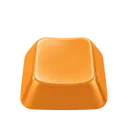 Thock
ThockDeep and heavy, like a custom board
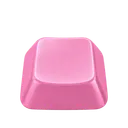 Creamy
Smooth, soft and buttery
 Clicky
Crisp blue switches. Loud and proud
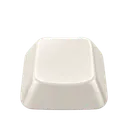 Silky
SilkySmooth linear switches. Clean and even
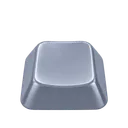 Hushed
Silent switches. Office-safe
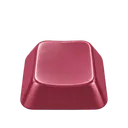 Bumpy
BumpyTactile bump, round woody knock
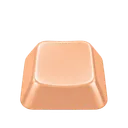 Pillowy
Deep, soft and cushioned
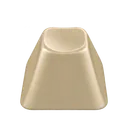 Clunky
Old-school springs. Loud and ringing
 Chunky
Heavy snap on every key
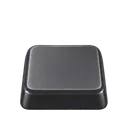 Retro
RetroThin plastic, like an old laptop
Fun.
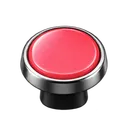 Typewriter
Hammer strikes and a ding on Return
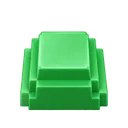 8-bit
8-bitEvery key is a note. Type a song
Every key is a note Bubble
Soft little pops. Weirdly calming
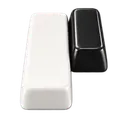 Piano
PianoEvery key is a piano note. Type a tune
Every key is a note Rain
RainRaindrops on every key. Pure calm
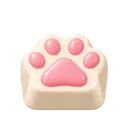 Paws
PawsTiny paw taps, and a meow on Return
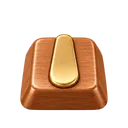 Kalimba
Music-box notes. Type a lullaby
Every key is a note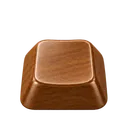 Woody
WoodyHollow wooden toks and knocks
 Marbles
Glassy clinks, a jar drop on Return
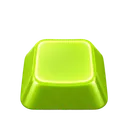 Laser
LaserPew pew. A power-up on Return
Options.
- Sound
The theme every key plays. Change it under Settings › Sounds.
Default: Thock- Volume
A slider under Settings › Sounds.
Default: 70%- Key release
A softer sound as each key comes back up, like a real switch. Settings › Keyboard › Keys.
Default: Off- Harder press, louder sound
Type softly and keys go quiet. Hit them hard and they get loud. Needs a motion sensor. Settings › Keyboard › Keys.
Default: On- Stereo placement
Keys on the left sound a little to the left, and keys on the right to the right. Settings › Keyboard › Keys.
Default: On- Use MacBook speakers
Plays the sounds through the MacBook even with AirPods on, so there’s no Bluetooth delay. Settings › General › Playback.
Default: Off- Quiet during calls
Goes silent while Zoom, FaceTime or any app is using your microphone. Settings › General › Playback.
Default: On- Trackpad clicks
Plays a click for the trackpad and mouse buttons. Settings › Events.
Default: On- Song mode
Six tunes, from Ode to Joy to Jingle Bells. Works with Piano, Kalimba and 8-bit. Settings › Sounds.
Default: Off
Limits.
- Key sounds need Input Monitoring. If keys stay silent, check System Settings › Privacy & Security › Input Monitoring.
- Harder press needs an Apple silicon MacBook with a motion sensor: a MacBook Pro with M1 Pro or M1 Max and later, or a MacBook Air with M2 and later. Other Macs play every key at full volume.
- Bluetooth headphones add their own delay. Turn on Use MacBook speakers to avoid it.
- Nothing plays until TapNoise is unlocked. Before you buy, you can still click any sound to hear it.
Questions.
Can TapNoise see what I type?
No. It is told which key position went down, so it can play the right sound. It never sees letters, words or passwords, and it keeps only counts such as taps today.
Can I hear a sound before I buy?
Yes. Click any sound in Settings › Sounds to hear it. The demo on the home page plays the same recordings from the app.
Does it work with an external keyboard?
Yes. A keyboard you plug in plays the same sounds as the built-in one.
Related.
Every key, a little joy.
TapNoise is US$7.99 once, before tax, on up to 2 Macs, with every update included. No subscription. Not for you? Ask for a refund within 14 days.